Sunday, May 8, 2011

Mute and Derender [Level I]


If you mute a mime, is he still silent?
Photo from Albion Spiteller's FLICKR site

Written 4 May, 2011

Mute and Derender

Second Life is designed to make a level playing ground for every resident. A few people are able to game the system, but for the most part everyone has access to the same security and privacy safeguards. If you keep your password strictly to yourself and don't grant build and map-tracking features to others, people can't mess with your account or your in-world property.

But they can still harass and annoy you.

There are two tools which are absolutely invaluable when people annoy you: mute and derender.

Mute stops you from hearing their chat or getting their IMs, and silences their gestures and scripted object. Blessed silence!

Not all viewers have a derender feature, but Phoenix and Imprudence, at least, do. Derender stops you from seeing them something or someone. Combine it with mute and they're just... gone. It's as if they never existed.

Mute and derender persist until you reverse them. You can easily cancel them.

To mute someone, just right click on their avatar and mute them, or mute them from their profile. To unmute them, just go to your mute list, highlight their name, and choose unmute (or unmute them from their profile).

You an also mute someone by muting one of their objects.

To derender something or someone in Phoenix, just right click them and derender. To re-render them, go to the Phoenix Menu, choose Whitelist, and remove them from the list.

It's that easy.

Friday, March 18, 2011

I Found it in the Sock Drawer [Level I]


Written 18 March, 2011


I Found it in the Sock Drawer


Level I


I don't know about you, but I'm forever having entire folders vanish from their allotted location. One day Clothing > Chey's Things > Weapons > Edged Weapons > Swords > Scripted Swords > Japanese Swords > Katanas, and there it is, right where it's supposed to be. Two days later the entire Weapons folder is nowhere to be found.


OMG, it's gone! Gone forever!


No it's not. It's just in the sock drawer.


It's way easy to inadvertently move a folder into another folder. It happens all the time to me.


And so, I always look in my sock drawer. And there it is!


Actually, what I do is type the name of the missing folder, or, if I can't remember what I named it, something I know that's in the folder. When I locate the folder I drag it back into position and all is good.


I always check my trash before I empty it to be sure an important folder isn't in there. It's a good habit to get into.


Wednesday, March 9, 2011

How to Make a Flat Prim Even Flatter [Level II]

Written 6 March, 2011

How to Make a Flat Prim Even Flatter [Level II]

Or, How to Make a Flag

Here's a trick to make the thin edge of a flattened prim even thinner. It takes only a few seconds, and it's well worth the effort.

Flattening the prim works best for flexible objects like flags and clothing, but is handy for paper and the thin edges of three-prim plants.

Let's make a flag.

First, we rez a prim. Distinguished looking, isn't it?
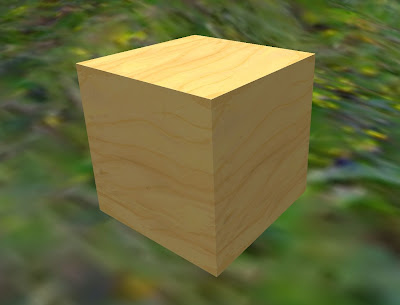


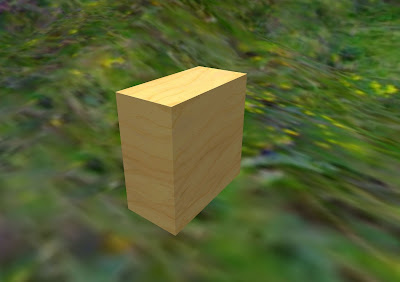
Now, in the Edit menu, select the Object Tab, and, in the Path Cut fields type 0.375 and 0.875. You'll see this halves the thickness of the prim along the Y dimension.

Here's the prim from the same camera angle.


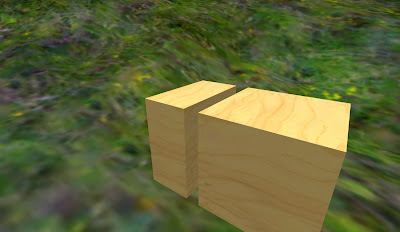
Here it is with an uncut prim beside it:


Now type .01 in the Y Size field of your prim. This sets the Y dimension to the smallest allowable, 0.01 meters.

Here are the two prims, side-by-side. You can see the prim we cut is much thinner.



Here I've rotated the prim to 0,90,0 and checked the Flexible Path box under the Features tab. I set Softness to 3.0, Gravity, Drag, Tension, Force X and Force Z to 0, Softness to 3.0, Wind to 1.0, and Force X to 1, and the prim is waving merrily in the wind.
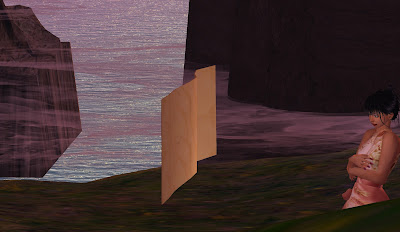


Now I add a flag texture Sweetie gave me long ago, rotate the texture by 270 degrees on the front of the flag, and...
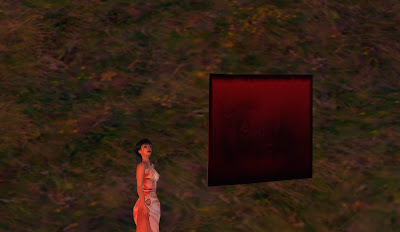


But uh-oh, what's this?
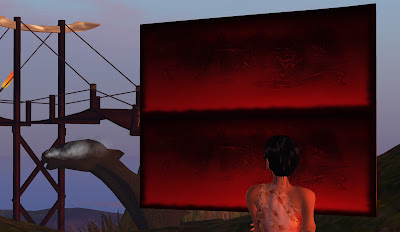


Cutting the prim created two surfaces where there was once one, so the texture is displayed twice at 1:1 density on each face. And not only that, it's upside-down! And yes, that's a sea monster swimming by. Ya gotta love Second Life.

To fix, I turn on Select Texture and select both faces. Then I go to the Texture tab and select both faces. I set rotation to 90 and set Repeats Per Face to 1 (H) and 0.5 (V).

This puts the texture in the correct proportion, but things still don't look right.

Still in the Texture tab, set the vertical offset of the top face to 0.25 and the bottom face to 0.75.

Now the textures on the two faces are properly aligned, and our flag is complete.
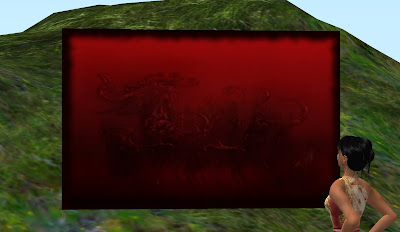


Except for the pole, of course. But you know how to make a flagpole, don't you?

Tuesday, February 22, 2011

That Stumping Sound [Level III]

Reposted from Cheyenne's Blogpost of 7 February, 2011

That Stumping Sound (Level III)

Don't you hate that stumping sound when steps have too much rise? Don't you just love going Bump! on every step of a 100-meter-tall Aztec Pyramid, or bump bump bump as you walk up the stairs to your bedroom?

Well, guess what? You can turn that bumping sound down, replace it with a more pleasing sound, or turn the bumping sound off altogether!

There's a scripting command called llCollisionSound. It's easy to slip it into an existing script in your prims or into the default "Hello, Avatar!" script.

Here's a simple script that will turn the sound off. Just copy it and paste it into a new script in your noisy prim:

//-----

// Simple Collision Sound stopper by Cheyenne Palisades

default
{
state_entry()
{
llCollisionSound("", 0.1);
}

touch_start (integer x)
{
// Here you can make the script do stuff when it's touched, if that's your inclination
}
}

//-----

By experimenting, I discovered the script must remain in the prim in a running state to suppress the sound, so keep in mind it's not like a cleaner script that rids your prim of particles and looping sounds. If you take the script out, the bumping collision sound will come back to haunt you.

To substitute another sound, simply drop it in the prim with the script and type its name (or better, the sound's UUID) inside the quotation marks. Best to copy and paste the name, as any error will make for difficulties.

The number that follows the name sets the loudness; you can change it from 0.0 (silent) to 1.0 (maximum loudness).

The wiki notes that setting the volume to 0.0 will disable collision particles. I didn't even know there WERE collision particles! I left the volume set to 0.1, which is very low.

You can see the script in action at the Whimsy Sungate. When you step up onto the round viewing platform or from the platform down to the walkway there's no sound-- even though there's a rise of more than .5 meters.

No stump, stump, stump! Imagine that!

Most Postings

Written 23 February, 2011

More Postings

I've let this blog lie fallow for too long. I'll be posting regularly from now on-- at least one or two posts per month.


What's Wrong With This Picture?

Written 22 February, 2011

Gone is Gone!

I can't stand Linden Lab's 2.x viewers, and so consequently I use Phoenix. I like it. A lot.

One of Phoenix' more interesting features is derender. From the pie menu you can make any object or person disappear. It's handy when obnoxious people are present; you mute and derender them, and they're just... gone.

Until now crossing a region border or teleporting to a new sim would reset all derendered objects; they would e visible again.

But with Phoenix' latest release-- 1.5.2.908-- derender is permanent. Once an object is gone, it's gone, and you can't see it, even with Highlight Transparent enabled. Ever. Again.

I found this out the hard way today. When preparing the last post I derendered the floating platform at the game area.because it kept getting in the way when taking photographs. Later, I derendered some plants at the swamp area at Whimsy so I could grab and manipulate a 100% alpha fog emitter.

This evening I teleported to the game area to play mahjong. When I arrived the table was there, but the platform wasn't.

I relogged. Same problem.

I flew to the marsh to check on the derendered plants there. Didn't see them.

I searched the web and found a JIRA for permanent derender. From there I went to the release notes and discovered derender is now permanent; objects will show only if you remove them from the blacklist.

Great. Where's the blacklist?

Maybe the preference menu... Phoenix tab... Nope... Network & Folders... Nope.

Maybe it's on the hard drive... C:\... Program Files... Phoenix Viewer... app_settings...Nope... llplugin... Nope.

Surprisingly, I found no FAQ on the Phoenix website. I did find an in-world support group and joined. With nearly 9000 members it was not working properly, but repeately typing queries that weren't posted finally resulted in a reply. The blacklist was in the Phoenix menu at the top of the screen.

Duh.

Problem resolved.

It's Gone!
It's back!


Tuesday, July 20, 2010

Did You Know No. 1 (Level IV)


Written 20 July, 2010

Did You Know?

No. 1

(Level IV)

Welcome to the first Did You Know?

This feature will tell you something about the Second Life interface or the grid in general that you may or may not know.

Today, server version and the statistics window.

-----

A couple of weeks ago Linden Lab rolled out server 1.40. The grid has been running on 1.38.

1.40 introduced Havok7, a new physics engine. Havok7 replaces Havok4, which replaced an even earlier version of Havok two years ago.

Physics engines enable moving vehicles, animated animals (except the simple circling ones), and things like bullets and rolling rocks. Physics also allows avatars to move.

Physics put a large load on the server, and too many physical objects can kill performance. For this reason it's best to switch physical objects off when they're not in use. So a new physics engine makes for better sim performance and hence a better Second Life experience.

In the five minutes server 1.4 was operational earlier in the month, I noticed a significant performance improvement on both Whimsy and Whimsy Kaboom. Kaboom has a large load due to the many scripts at the robot sanitorium, and has been experiencing a bit of time dilation (not enough to make for a bad experience, but enough to worry me).

Well, with 1.40, which was rolled on about 9 AM Linden time today, Kaboom's time dilation is almost gone. The simulator is running a solid 44 frames per second.

And so now for the Did You Know?

Did you know you can determine the server version of any sim you're on? Simply drop down the Help menu at the top of the screen and choose About Second Life. You'll see not only the server version, but information about your viewer, your computer (operating system, processor, RAM, and, especially useful for Second Life, video card).

If the server version is 1.4, your sim is running Havok7. If it's V. 1.38, you're still on Havok4. Sims are rolling on today and the upgrade should be finished by tomorrow. If the Lindens don't roll back, we should be permanently on Havok7.

Here's a bonus:

Did you know SHIFT-CTRL-1 (CMD on the Mac) will open your statistics window? Here you can determine:

The statistics window provides performance data for the simulator-- your Second Life region. You can spot simulator lag, but viewer-side lag (caused primarily by particles, textures, and your video card's ability to fender millions of complex polygons), is far more often the culprit in the gender "lag" everyone talks about.

Frame Rate: (how many times Second Life updates per second; higher is better, as you can turn, walk, and fly more smoothly).

Internet Connectivity: A low Ping Time means fast response to your key presses and mouse movements; Packet Loss tells you the percentage of data lost in transmission. Bandwidth tells you how fast data are coming in and going out.

Simulator Performance: Time Dilation is how much molasses effect is going on; in other words, how much time is slowed by load on the sever. In other other words, how much lag you'll experience. SIM FPS is another measure of how much load is on the processor. 45 is optimal, 44 acceptable. Physics FPS is a measure of the amount of physics load on the simulator. 45 is optimal.

Avatar Data: Main Agents tell you how many avatars on on the sim. I have no idea what Child Agents measures. Oh, wait! The Wiki tells me it's the number of avies outside the sim who can see into it.

Objects and Scripts: How many objects are on the sim, how many scripts, and other script data I don't begin to comprehend.

Time: Tells in milliseconds how much processor time is used on objects, avatars, scripts, images, and physics. Total Frame Time should be less than 22.3 ms.